· webhooks
Hold and Replay Webhooks While Offline
Learn how to debug webhooks offline. Hold, inspect, and safely replay captured webhook payloads and signatures locally when your tunnel is down using InstaWormhole.
By InstaWormhole team, Engineering
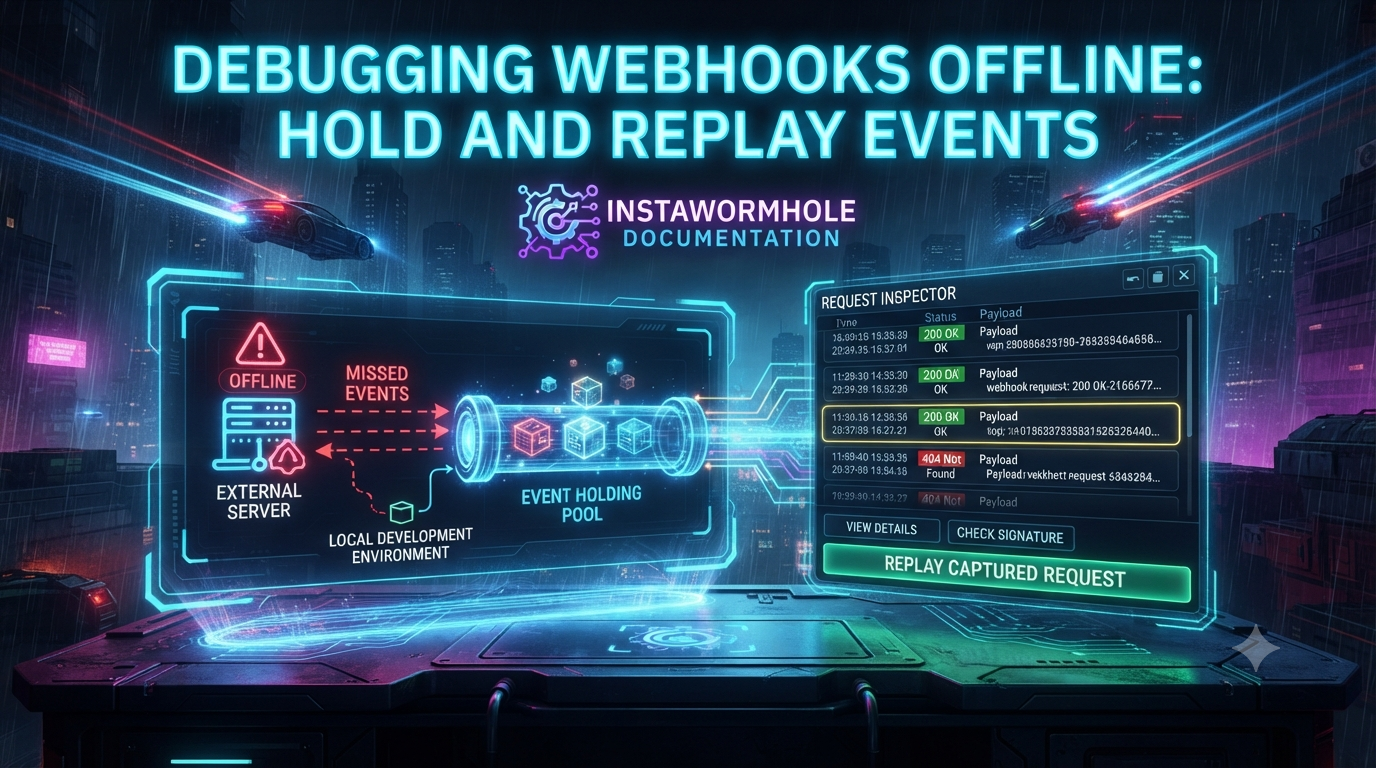
Developing integrations with services like Stripe, GitHub, Slack, or Shopify means receiving HTTP callbacks on your local machine. When your computer sleeps or your connector stops, webhooks that arrive in the meantime can be lost. InstaWormhole’s webhook inbox holds them while your tunnel is offline and delivers them when it reconnects. The request inspector then lets you check signatures and replay requests after you fix a bug.
How the Webhook Inbox Works
The webhook inbox keeps webhooks that arrive while your computer is asleep or the connector is stopped. It delivers them when the tunnel is back.
Requirements
- Plan: Starter or higher.
- Tunnel type: A durable tunnel that receives webhooks.
- No password or token: The tunnel must have neither, because a webhook sender cannot send either.
What Happens to a Held Webhook
- Reply to the sender: The sender gets a
202reply while the tunnel is offline. - Which requests are held: Only POST, PUT and PATCH requests to the paths you list are held, and only while the tunnel has no live connector.
- Delivery: After you start the connector again, held requests are delivered one at a time, in order, at about two a second.
- Tracking: The list under Webhook inbox shows each request as delivered, with the status your app answered.
Limits
| What | Limit |
|---|---|
| Requests held per tunnel | 100. The 101st gets a 503 with a Retry-After header, so the provider tries again later. |
| Size of one request body | 64 KiB. A larger request gets a 413. |
| How long a request is kept | 24 hours on Starter and Pro, 72 hours on Team and Business. |
| Delivery attempts | Up to three. A reply below 500 counts as delivered, even if your app refused it. Anything else is retried after a wait, then marked failed. |
Set Up the Webhook Inbox
- Open the tunnel in the dashboard and find Webhook inbox. You will see a switch and a box for webhook paths.
- Turn on Hold webhook requests while this tunnel is offline, list your webhook paths, and save:
/webhooks/stripe
/webhooks/github
Enter one path per line, up to 10. A path covers itself and everything under it. The dashboard confirms the inbox is saved and says it applies within 30 seconds.
- Stop the connector and send a webhook. The sender gets a
202reply, and the dashboard says a request is waiting for the tunnel. - Start the connector again. The held requests are delivered in order.
If a webhook was not held, check the path spelling, confirm the request method is POST, PUT or PATCH, and make sure the setting was saved at least 30 seconds ago. If you cannot turn the inbox on, remove the tunnel’s password or token, or rely on the provider’s own retries.
To turn the feature off, switch off the hold option and save. Requests already held are still delivered.
What to Know Before You Rely on It
- Not guaranteed: A request can be lost if it is larger than the size limit, if the inbox is full, or if the holding time passes before your tunnel is back.
- Storage: A held request keeps its full headers and body in unencrypted storage until it is delivered or reaches its holding time. It may contain personal data or credentials the sender included.
- Signatures can expire: A provider’s signature may expire before the request is delivered.
- Cleanup: When a request is delivered, fails or expires, its headers and body are deleted. Only a short record stays for 24 hours so you can see what happened. The dashboard never shows request content and removes the query string from paths.
Inspect Requests
The request inspector records requests that reach a durable tunnel. Quick addresses from the connector are not recorded.
- Open the tunnel in the dashboard and choose Open request inspector.
- Send a request to the tunnel’s address. A new row shows the method, path, status and duration.
- Select a row to see its detail.
The detail shows:
- The method and path. Query values are replaced, so a token in the address is not stored.
- The status, and who answered: your app, or InstaWormhole itself with a code such as
CONNECTOR_UNAVAILABLEorORIGIN_UNREACHABLE. - The size and type of the request and response.
- The request and response headers, with sensitive values replaced by
redacted.
You can filter by status class, method, path text and time, and you can add a note (up to 500 characters) or pin a request.
Request records are kept for 24 hours, and the newest 500 requests of each tunnel are retained. A tunnel records at most 10 requests a second. Requests refused by a password prompt are not recorded.
Check Webhook Signatures
Providers such as Stripe, GitHub, Slack and Shopify sign their webhooks. You can add a provider’s signing secret to a tunnel so the inspector shows whether each captured request’s signature is valid. This is available on Starter and higher, on durable tunnels.
- Open the tunnel and find Webhook signatures. You will see a Provider list and a Signing secret box.
- Choose the provider, paste the signing secret, and save. The secret must be at least 6 characters. It is encrypted before it is stored and is never shown again after you save it.
- Send a webhook from the provider and open it in the inspector. The request’s detail shows whether the signature is valid.
To test the check, send a request with a wrong signature. The inspector reports it as not valid. To delete the secret, choose Remove under Webhook signatures.
The check only reports on captured requests. It does not stop an invalid request from reaching your app, so your app should still verify signatures itself.
Replay a Captured Request
After you fix a bug, you can send a captured request to your app again without waiting for the sender to retry. Replay needs a durable tunnel without a password.
- In the inspector, select the request and choose Replay. A dialog shows the method, path, headers and, if it was kept, the body. You can edit them. A warning appears for methods that change data, such as POST.
- Confirm the replay. The request goes to the tunnel’s public address and your app, marked with an
X-Instawormhole-Replayheader. The dialog shows the result. - The replayed request appears as a new row in the inspector.
Keep these points in mind:
- If a request creates or changes something, such as a payment or an order, replaying it can do that again.
- You can replay once every 5 seconds, and each replay is recorded in the workspace audit log.
- Replay is not available on password-protected tunnels or for WebSocket requests. On a password-protected tunnel, use Copy as cURL and add the password yourself.
- To use a request elsewhere, choose Copy as cURL or Download HAR. Both are made in your browser from the stored request, so redacted values stay redacted.
Conclusion
The webhook inbox keeps webhooks that arrive while your connector is stopped and delivers them in order when you reconnect. The inspector then shows what arrived and whether its signature was valid, and replay sends a request to your app again after a fix. Keep the limits in mind: the inbox holds up to 100 requests per tunnel, each up to 64 KiB, and does not guarantee delivery. For the full details, see the InstaWormhole documentation.