· engineering
Share Private Client Demos With Six-Digit Email Codes
Gate work-in-progress client demos with six-digit email codes on Starter and higher, plus expiry options from In 1 hour to Never. Learn how agencies restrict access.
By InstaWormhole team, Engineering
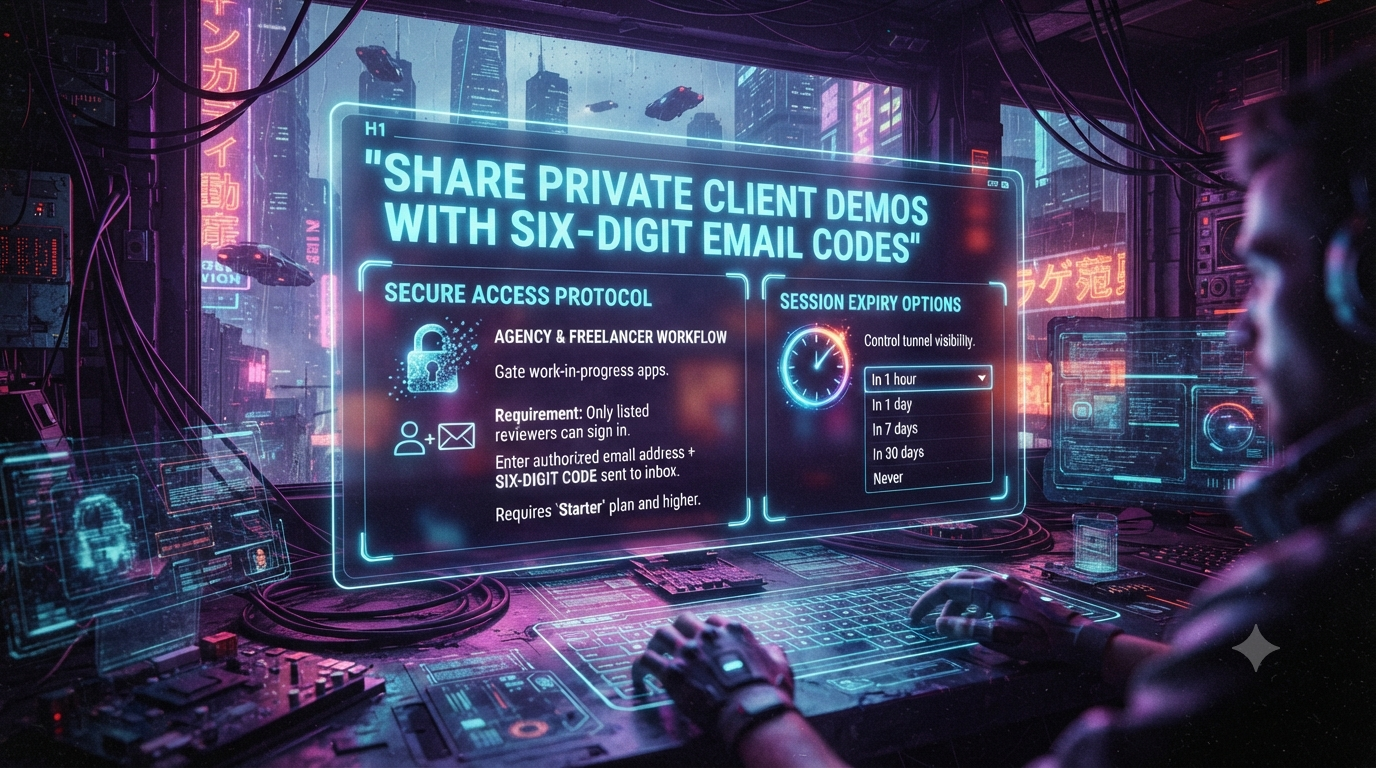
Sharing work-in-progress web applications with clients, stakeholders, and external reviewers creates an access-control problem. A public staging environment exposes unfinished features and half-built interfaces to the open internet. A dedicated staging server with its own authentication, OAuth providers, or VPN rules for every client project costs engineering hours that agencies and freelancers cannot easily bill.
Exposing a local development server through a tunnel solves the deployment bottleneck, but a raw public URL brings new risks. Anyone who guesses or receives a forwarded link can view client work before launch. Shared passwords also fall short, because they get pasted into chat threads and forwarded to people you never approved.
InstaWormhole offers two controls that address this: email codes and tunnel expiry. According to the InstaWormhole documentation, email codes let only the people you list open a tunnel, by emailing each of them a six-digit code when they visit. Tunnels can also be set to expire after a chosen period. This article shows how to combine the two for client demos and how to avoid the pitfalls the documentation calls out.
Why Traditional Client Demo Workflows Fall Short
The Overhead of Dedicated Staging Environments
A traditional staging pipeline means provisioning infrastructure, configuring DNS and SSL certificates, and maintaining deployment scripts. When an agency juggles several client builds at once, each isolated staging environment adds to that burden. A live review call also loses momentum if every small copy or layout tweak has to go through a build and rollout before the client can see it. Developers would rather change the file locally and let the client refresh.
The Flaws of Unprotected Local Tunnels
A tunnel routes public traffic to your local app, which solves the speed problem. An unauthenticated tunnel address, however, is protected only by being hard to guess. If your local app connects to a development database with seeded records or proprietary logic, anyone who finds the address can reach it. The InstaWormhole docs include a page on checking what you are exposing before you share, which is a sensible first read.
The Weakness of Shared Passwords
Many developers secure preview links with a single shared password. That approach has three problems:
- No individual accountability: Everyone uses the same credential, so you cannot tell which stakeholder, or which forwarded copy, opened the build.
- Credential sprawl: Clients paste shared passwords into chat threads or forward them to consultants, and you lose control over the audience.
- Revocation friction: Removing one person means changing the password and redistributing it to everyone else.
How Six-Digit Email Codes Secure Client Previews
Email codes replace a shared secret with a list of approved addresses. Per the email codes guide, you list who may open the tunnel, one entry per line. An entry can be a full address such as ada@example.com or a whole domain such as @example.com, and you can list up to 100 entries.
When a visitor opens the tunnel address, they see a page asking for an email address. If the address is on your list, a six-digit code arrives in their inbox, and entering it opens your app. An address that is not on the list never receives a code. The page gives the same message for every address, so nobody can use it to find out who is on your list.
Your app needs no login screens or email integration of its own to host a private demo.
What the Documentation Says About Codes and Sessions
| Setting | Documented behavior |
|---|---|
| Allowlist size | Up to 100 entries, as full addresses or whole domains |
| Code validity | A code works once, for 10 minutes, and allows five tries |
| Newest code | Only the newest code works |
| Code requests | Each address can ask for 5 codes an hour, and a tunnel for 20 codes an hour |
| Signed-in duration | You choose from 1 to 24 hours; when it ends, the visitor asks for a new code |
| Changing settings | Changing the list, the sign-in time, or the protection signs everyone out at once |
Plan and Tunnel Requirements
The guide states that email codes apply to Starter and higher plans, and to durable tunnels. A few more points to know before you start:
- A tunnel has one access mode at a time, so turning on email codes replaces a password or access token on that tunnel.
- Email codes are for people with a browser. A script, an AI client, or a webhook provider cannot read an email, so the docs recommend an access token for those.
- Turning on email codes ends the tunnel’s live connection briefly. Your connector reconnects on its own.
Domain Entries Deserve Care
A domain entry lets in everyone at that domain. The docs warn that anyone who can receive email there can get in, including people who share a mailbox or who have left the company. For client work, list full addresses whenever you can.
Pairing Email Codes With Tunnel Expiry
Identity checks control who gets in. Expiry controls how long the tunnel exists. According to the documentation on ending access, when you create a tunnel you can choose when it expires: never, or in 1 hour, 1 day, 7 days, or 30 days. An expired tunnel cannot be switched on again, so you create a new tunnel instead.
Pairing the two gives you a two-layer approach. Only listed reviewers can sign in, and the preview address stops working when the review window closes.
Choosing an Expiry for Each Review Style
Match the expiry to how your client reviews work:
- Live screen-share and sign-off (1 hour): For a video call where the client clicks around on their own device, the link ends shortly after the meeting.
- Overnight stakeholder review (1 day): This suits a client who needs to test a flow after hours or share a build with a colleague in another time zone before tomorrow’s standup.
- Weekly sprint acceptance (7 days): This fits a weekly delivery cadence, with the link ending around the next release.
- Extended user acceptance testing (30 days): This accommodates longer review cycles while still enforcing a cutoff.
- No expiry (never): Use this only when the tunnel must stay available until you end it yourself.
Pause, Stop, Rotate, or Delete
You do not have to wait for an expiry timer. The docs describe four controls for switching a tunnel off:
| Action | What happens | Can you undo it |
|---|---|---|
| Pause | The address stops answering and the connected app is disconnected. The tunnel keeps its address. | Yes, choose Resume |
| Stop | The address stops answering at once and any connected app is disconnected. The tunnel keeps its address. | Yes, choose Resume |
| Rotate address | The tunnel gets a new random address and the old one stops working immediately. | No |
| Delete | The tunnel and its address are removed permanently. | No |
Rotating is unavailable while a tunnel has a reserved name. If a client approves a build early, stopping or pausing the tunnel removes exposure right away.
Step-by-Step Workflow: Locking Down a Client Demo
Step 1: Start Your Local Application
Run your app on its usual development port and confirm that pages, API routes, and mock data load correctly in your own browser.
# Example: start a local development server
npm run dev
Then connect it to a durable tunnel. The docs cover installing the connector and running it against your app. The Quick Start walks through opening your first tunnel.
Step 2: Gather Your Reviewer Allowlist
Collect the exact email addresses of everyone who needs access. The docs note that the check ignores capital letters, but the address must otherwise match the entry on your list. Some practical habits:
- Ask clients for the inbox they check on the device they will use for testing.
- Prefer full addresses over domain entries, for the reasons above.
- Add your own secondary address so you can test the sign-in flow your client will see.
Step 3: Choose an Expiry and Turn On Email Codes
Choose the expiry when you create the tunnel. Then open the tunnel in the dashboard, go to the Email codes section, and enter the allowed addresses, one per line. Choose how long a visitor stays signed in, from 1 to 24 hours, then choose Turn on email codes. The docs suggest eight hours to cover a working day.
Step 4: Test It Yourself
Open the tunnel address in a private window and enter an address from your list. Confirm that:
- The page asks for an email address before showing your app.
- A listed address receives a six-digit code, and entering it opens your app.
- An unlisted address never receives a code.
Tunnel Doctor cannot read your email, so it reports an email-code tunnel as unverified. The docs say this is expected, because the request stopped at the sign-in page.
Step 5: Share the Link With a Briefing Note
Send the address to your reviewers with a short explanation so the sign-in step does not surprise them:
Here is the live preview link for today’s review. When prompted, enter your work email address, then check your inbox for a six-digit code to sign in. The link will stop working when our review window ends.
Troubleshooting Reviewer Sign-In
The docs list these common problems:
- No email arrives: Check the spam folder and confirm that the address is on the list as the visitor typed it. If the per-address or per-tunnel code limit was reached, wait and try again.
- The code is refused: A code works once, for 10 minutes, with five tries. Ask for a new code on the code page, because only the newest code works.
- Visitors are asked to sign in again: Changing the list, the sign-in time, or the protection signs everyone out at once.
Scenarios for Agencies and Freelancers
These are illustrative examples of how the features can be combined.
A Boutique Agency Preparing a Product Launch
An agency is building a storefront whose imagery and pricing are confidential until launch day. It lists only the client’s marketing lead and creative director by full address and sets a 1 day expiry. The agency iterates live without putting unannounced products on a public staging domain, and the link stops working the next day.
A Freelancer Building an Internal Dashboard
A freelance developer needs to show a startup an internal dashboard running on seed data. Instead of building authentication for a throwaway prototype, they use a Starter plan tunnel, list the client’s CTO and product manager, and choose a 7 day expiry.
A Retainer Project With Rotating Reviewers
On a long engagement, the legal team reviews one week and the accessibility team the next. The agency updates the allowlist for each cycle. Because the docs state that changing the list signs everyone out at once, each milestone starts with a clean sign-in for the current reviewers.
Best Practices for Client Demo Security
Isolate Demo Data From Production Credentials
Never point a shared local app at a live production database. Use seed scripts, sandbox API keys, and synthetic accounts so reviewers can click and submit freely without touching real customer records.
Audit Your Allowlist Between Milestones
Remove stakeholders who no longer need access, especially if you use any domain entries. Keeping the list short means codes go only to active reviewers.
Match Expiry to Actual Review Needs
Treat 1 hour and 1 day as defaults for routine check-ins, and reserve 7 days and 30 days for structured testing phases. Use never only when you have a reason to keep the tunnel open indefinitely.
Use the Right Access Mode for Non-Browser Traffic
Email codes cannot serve scripts, AI clients, or webhook providers. For those, the docs point to access tokens. Passwords, tokens, and email codes are separate modes, and a tunnel can use only one at a time.
Summary
For client demos, the documented features combine as follows:
- Identity-gated access: Email codes let only the addresses or domains you list sign in, with up to 100 entries.
- Plan requirement: Email codes apply to Starter and higher plans and to durable tunnels.
- Time-bound sessions and codes: Codes last 10 minutes and work once, and visitors stay signed in for 1 to 24 hours, as you choose.
- Lifecycle control: Tunnels can expire never, or in 1 hour, 1 day, 7 days, or 30 days, and you can pause, stop, rotate, or delete them at any time.
Replacing a shared password with a short allowlist and an expiry window keeps your clients’ work private without building any authentication into the app itself.